torchvision.transforms.v2.functional 모듈은,
- 이미지 tensor 객체를 입력으로 받아
- 해당 이미지에 직접 적용할 수 있는 다양한 이미지 변환 함수들을 제공함.
제공되는 함수들은
torchvision.transfroms.v2 의 Transform 클래스들과 달리,
- 상태(state)를 가지지 않으며, 입력 텐서(이미지 등)를 인자로 직접 받아 변환된 텐서를 즉시 반환함.
- 간단하고 직접적이며, 변환을 한 번만 적용하거나 사용자 정의 변환 함수 내에서 다른 함수들을 조합할 때 유용
- 여러 변환을 순차적으로 적용하는 복잡한 파이프라인을 구축할 경우,
각 함수 호출마다 반복적인 인자 전달이 필요하여 다소 불편할 수 있음.
관련 gist url.
https://gist.github.com/dsaint31x/4e2aad210cd8eeb4f503d0da9680c7b5
dl_Cropping-torchvision.transforms.v2.functional.ipynb
dl_Cropping-torchvision.transforms.v2.functional.ipynb - dl_cropping-torchvision-transforms-v2-functional.ipynb
gist.github.com
0. 시작하기 앞서
colab에서 다음의 코드들을 수행시켜서 이미지를 다운로드하고 아래의 예제 코드를 수행할 수 있도로 함:
from torchvision.transforms.v2.functional import (
    crop,
    resized_crop,
    center_crop,
    five_crop,
    ten_crop,
)

img_path = "assets/astronaut.jpg"
img_url = "https://raw.githubusercontent.com/pytorch/vision/main/gallery/assets/astronaut.jpg"

!mkdir -p assets/coco/images
!curl -o assets/astronaut.jpg {img_url}

from torchvision.io import decode_image

original_img = decode_image(img_path)

print(f" {type(original_img) = }\n \
{original_img.dtype = }\n \
{original_img.shape = }")
다음은 이미지 출력을 위한 plot 함수임:
# https://github.com/pytorch/vision/tree/main/gallery/
# 위의 torchvision관련 예제들의 display를 위한 plot함수를 그대로 가져옴.

import matplotlib.pyplot as plt
import torch
from torchvision.utils import draw_bounding_boxes, draw_segmentation_masks
from torchvision import tv_tensors
from torchvision.transforms.v2 import functional as F


def plot(imgs, row_title=None, **imshow_kwargs):
    if not isinstance(imgs[0], list):
        # Make a 2d grid even if there's just 1 row
        imgs = [imgs]

    num_rows = len(imgs)
    num_cols = len(imgs[0])
    _, axs = plt.subplots(nrows=num_rows, ncols=num_cols, squeeze=False)
    for row_idx, row in enumerate(imgs):
        for col_idx, img in enumerate(row):
            boxes = None
            masks = None
            if isinstance(img, tuple):
                img, target = img
                if isinstance(target, dict):
                    boxes = target.get("boxes")
                    masks = target.get("masks")
                elif isinstance(target, tv_tensors.BoundingBoxes):
                    boxes = target
                else:
                    raise ValueError(f"Unexpected target type: {type(target)}")
            img = F.to_image(img)
            if img.dtype.is_floating_point and img.min() < 0:
                # Poor man's re-normalization for the colors to be OK-ish. This
                # is useful for images coming out of Normalize()
                img -= img.min()
                img /= img.max()

            img = F.to_dtype(img, torch.uint8, scale=True)
            if boxes is not None:
                img = draw_bounding_boxes(img, boxes, colors="yellow", width=3)
            if masks is not None:
                img = draw_segmentation_masks(img, masks.to(torch.bool), colors=["green"] * masks.shape[0], alpha=.65)

            ax = axs[row_idx, col_idx]
            ax.imshow(img.permute(1, 2, 0).numpy(), **imshow_kwargs)
            ax.set(xticklabels=[], yticklabels=[], xticks=[], yticks=[])

    if row_title is not None:
        for row_idx in range(num_rows):
            axs[row_idx, 0].set(ylabel=row_title[row_idx])

    plt.tight_layout()
1. 기본: resize, crop
1-1. resize(img, size, interpolation=…)
- 역할:
- 입력 이미지의 공간 해상도(height, width)를 변경
- 픽셀 값을 보간(interpolation)하여 새로운 크기의 이미지를 생성
- 사용 시점:
- 모델 입력 크기를 맞춰야 할 때
- 서로 다른 해상도의 이미지를 동일한 크기로 통일할 때
- crop 이후 네트워크 입력 크기로 복원할 때
# resize를 위한 출력 크기 정의
# size는 (height, width) 또는 한 변의 길이
size = (224, 224)

# resize 함수로 이미지 크기 변경
resized_img = resize(original_img, size)

# 크기 확인
print(f"{original_img.shape = }")
print(f"{resized_img.shape  = }")

# 결과
# original_img.shape = torch.Size([3, 512, 512])
# resized_img.shape  = torch.Size([3, 224, 224])
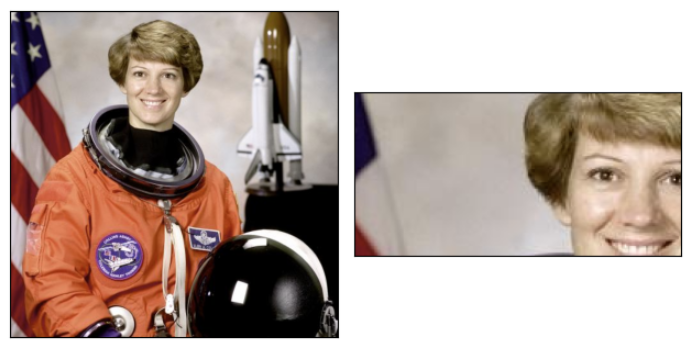
1-2. crop(img, top, left, height, width)
- 역할:
- 이미지를 지정된 위치(
top,left)에서 - 지정된 크기(
height,width)만큼 사각형 모양으로 자름.
- 이미지를 지정된 위치(
- 사용 시점:
- 이미지의 특정 영역만을 정확히 추출하고자 할 때 사용.
- Region of Interest (ROI) 추출 등.
# 자르기 위한 영역 정의
# top, left는 자르기 시작할 좌상단 좌표입니다.
# height, width는 자를 영역의 크기입니다.
top = 50
left = 50
height = 100
width = 200

# crop 함수를 사용하여 이미지 자르기
cropped_img = crop(original_img, top, left, height, width)

# 자른 이미지의 크기 확인
print(f"{original_img.shape = }")
print(f"{cropped_img.shape  = }")

# 결과.
# original_img.shape = torch.Size([3, 512, 512])
# cropped_img.shape  = torch.Size([3, 100, 200])
결과 이미지는 다음과 같음:
2. resized_crop(img, top, left, height, width, size, interpolation, antialias)
- 역할:
- 이미지를 지정된 영역(
top,left,height,width)으로 자른 후, - 그 결과를 지정된 크기(
size)로 조정(resize).
- 이미지를 지정된 영역(
- 사용 시점:
- 이미지의 특정 영역을 추출하고 그 영역의 크기를 일정한 크기로 맞추고자 할 때 사용.
- Data Augmentation(데이터 증강) 과정 등에서 사용 가능.
resized_cropped_img = resized_crop(
    original_img,
    top, left, height, width, # 자를 영역 지정.
    size = [100, 50],         # size of output. bilinear방식이 기본 사용.
    antialias=True,           # antialiasing 적용 여부.
    )
# 결과 확인
print(f"{original_img.shape         = }")
print(f"{resized_cropped_img.shape  = }")

# results
# original_img.shape         = torch.Size([3, 512, 512])
# resized_cropped_img.shape  = torch.Size([3, 100, 50])
결과 이미지는 다음과 같음:

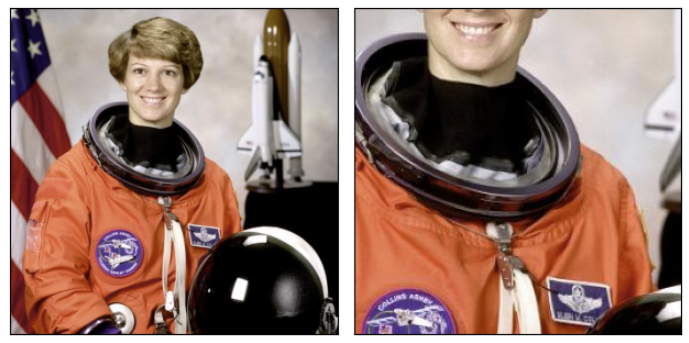
3. center_crop(img, output_size)
- 역할:
- 이미지를 중앙에서 지정된 크기(
output_size)만큼 자름(crop)
- 이미지를 중앙에서 지정된 크기(
- 사용 시점:
- 이미지의 중앙 부분을 중요하게 고려하거나,
- 모델 입력 크기에 따라 모든 이미지를 동일한 크기로 만들고 싶을 때 사용됨.
# 자를 최종 이미지 크기 정의
output_size = [256, 256] # 예: 256x256 픽셀

# center_crop 함수를 사용하여 이미지를 중앙에서 자르기
center_cropped_img = center_crop(
    inpt = original_img,
    output_size = output_size,
    )

# 결과 확인
print(f"{original_img.shape        = }")
print(f"{center_cropped_img.shape  = }")

# result
# original_img.shape        = torch.Size([3, 512, 512])
# center_cropped_img.shape  = torch.Size([3, 256, 256])
결과 이미지는 다음과 같음:
4. five_crop(inpt, size)
- 역할:
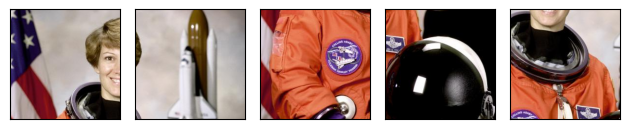
- 이미지의 네 모서리(좌상단, 우상단, 좌하단, 우하단)와
- 중앙에서 지정된 크기(
size)의 영역을 각각 잘라 - 총 5개의 이미지로 구성된 tuple을 반환.
- TTA (Test Time Augmentation) 에서 주로 사용됨.
- 사용 시점:
- 이미지의 다양한 부분을 고려한 데이터 증강이나
- 모델 평가 시 사용됨.
# 자를 최종 이미지 크기 정의
crop_size = [224, 224] # 예: 각 자른 이미지의 크기를 224x224로 설정

# five_crop 함수를 사용하여 이미지에서 5개 영역 자르기
five_cropped_images = five_crop(
    inpt = original_img,
    size = crop_size,
    )
# 결과 확인
print(f"{original_img.shape        = }")
print(f"{type(five_cropped_images) = }")
print(f"{len(five_cropped_images)  = }")

# Result
# original_img.shape        = torch.Size([3, 512, 512])
# type(five_cropped_images) = <class 'tuple'>
# len(five_cropped_images)  = 5
결과 이미지는 다음과 같음.
5. ten_crop(inpt, size, vertical_flip)
- 역할:
five_crop으로 얻은 5개의 영역에 대해 각각 좌우 반전을 적용하여 총 10개의 이미지를 반환.
- 사용 시점:
- 주로 이미지 분류 모델의 평가 단계에서 10개의 다른 뷰를 모델에 입력하여 예측 결과를 평균내는 데 사용됨.
# 자를 최종 이미지 크기 정의
crop_size = [224, 224] # 예: 각 자른 이미지의 크기를 224x224로 설정

# ten_crop 함수를 사용하여 이미지에서 10개 영역 자르기
ten_cropped_images = ten_crop(
    inpt = original_img,
    size = crop_size,
    )
# 결과 확인
print(f"{original_img.shape        = }")
print(f"{type(ten_cropped_images)  = }")
print(f"{len(ten_cropped_images)   = }")

# Result
# original_img.shape        = torch.Size([3, 512, 512])
# type(ten_cropped_images)  = <class 'tuple'>
# len(ten_cropped_images)   = 10
결과이미지는 다음과 같음.

같이 보면 좋은 자료들
https://docs.pytorch.org/vision/main/transforms.html#cropping
Transforming and augmenting images — Torchvision main documentation
Shortcuts
docs.pytorch.org
2025.06.15 - [Python] - [PyTorch] Geometric-torchvision.transforms.v2
[PyTorch] Geometric-torchvision.transforms.v2
Geometric Image Transformation (기하학적 영상 변환)은영상의 shape(모양), size(크기), orientation(방향) 또는 position(위치)과 같은Geometric Properties(기하학적 속성)을 변경하는 과정 https://dsaint31.me/mkdocs_site/DIP/c
ds31x.tistory.com
2025.06.16 - [Python] - [PyTorch] torchvision.transforms.v2 - Summary (작성중)
[PyTorch] torchvision.transforms.v2 - Summary (작성중)
다음의 공식문서를 기반으로 정리한 것임.https://docs.pytorch.org/vision/main/auto_examples/transforms/plot_transforms_illustrations.html#sphx-glr-auto-examples-transforms-plot-transforms-illustrations-py Illustration of transforms — Torch
ds31x.tistory.com
'Python' 카테고리의 다른 글
| [PyTorch] Conversion-Torchvision.transforms.v2.functional (0) | 2025.06.10 |
|---|---|
| [PyTorch] Geometry-Others-Torchvision.transforms.v2.functional (1) | 2025.06.10 |
| [Py] PyInstaller 사용하기-GUI App. (4) | 2025.06.08 |
| [Py] subprocess 모듈 사용법. (1) | 2025.06.07 |
| [Py] SymPy (Symbolic Python) - Symbolic Computation (1) | 2025.06.05 |


