Pillow(PIL)에서는 Image 클래스 객체를 통해 다루는 이미지를 추상화하지만,
scikit‑image(이하 skimage)는
- OpenCV와 마찬가지로
- NumPy의 ndarray를 통해
- 이미지를
int또는float의 요소들로 구성된 다차원배열로 처리함.
참고로, Pillow에서 Image 객체의 주요 attribute 에 대해서 다음 URL을 참고할 것:
2025.07.15 - [Python] - Pillow에서 Image 객체의 주요 attribute.
Pillow에서 Image 객체의 주요 attribute.
Pillow(PIL)의 Image 객체는 Pillow 라이브러리에서 이미지 처리의 핵심이 되는 클래스임.이는 이미지를 추상화 하며, 다음과 같은 주요 속성들을 가지고 있음:기본 정보 속성size이미지의 크기를 (width,
ds31x.tistory.com
1. 이미지 크기, 배열 형태
NumPy 배열(ndarray)로 이미지를 다루기 때문에 NumPy에서 ndarray의 기본 attribute를 그대로 사용가능함.
다음 코드가 이를 간단히 보여줌.
from skimage import io
image = io.imread('https://raw.githubusercontent.com/dsaint31x/OpenCV_Python_Tutorial/master/images/lena.png')
print(f"{image.shape = }")  # (height, width, channels) 또는 (height, width)
print(f"{image.dtype = }")  # 일반적으로 imread로 읽은 경우 uint8
print(f"{image.size = }") # 전체 pixel의 수- 배열의
.shape로 크기 확인 가능: width, height 정보 획득 - 채널 수(3이면 보통
RGB, 4이면 흔히RGBA등)로 색상 모드 유추 가능
2. Color space 변환 및 color 관련 처리
skimage.color 모듈이 색상 공간(color space) 변환 및 색상 관련 처리를 담당.
color space(or color model)에 대한 자세한 내용은 다음을 참고:
예를 들어:
skimage.color.rgb2hsv(): RGB에서 HSV로 변환.skimage.color.rgb2lab(): RGB에서 CIE LAB으로 변환
(인간이 인지하는 시각적 밝기 차이에 기반한 색 비교 및 색차($\Delta E$) 계산에 용이한 CIE LAB으로 변환)- RGB 값을 [0.0,1.0] 범위로 정규화(normalize) 한 floating-point 이미지를 입력으로 받아들임.
skimage.color.rgba2rgb(): 투명도가 있는 alpha채널을 지원하는 RGBA에서 RGB로.- alpha는 transparency (or opacity)를 의미.
- 0.0 인 경우 fully transparent.
- 1.0 인 경우 fully opaque. (fg)
2-1. HSV 예제
- H (Hue) : 색상 (색의 종류, [0.0, 1.0])
- S (Saturation) : 채도 (색의 선명도, [0.0, 1.0] )
- V (Value) : 명도 (밝기, [0.0,1.0])
from skimage import data, color
import matplotlib.pyplot as plt

# 내장 예제 이미지 (우주비행사 사진)
image_rgb = data.astronaut() # [0,255] 의 3채널
print(f"{image_rgb.shape = }")

# RGB → HSV 변환
image_hsv = color.rgb2hsv(image_rgb) # [0,1]

plt.figure(figsize=(6, 4))
plt.imshow(image_hsv[..., 0], cmap='hsv') # 'hsv'는 hue 채널에서만 제대로 동작(hue만 보이는 colormap)
plt.title("Hue Channel (HSV)")
plt.axis("off")
plt.show()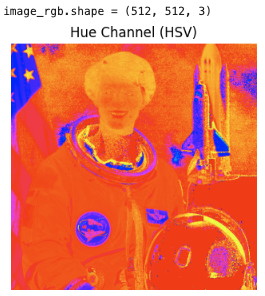
2-2. CIE LAB
CIE LAB은 인간의 시각적 인지에 기반하여 설계된 지각적 균등(perceptually uniform) 색 공간으로,
동일한 수치 차이가 유사한 색 차이로 인식되도록 만든 color space.
RGB나 CIE XYZ와 달리 밝기(L*)와 색상 축(a*, b*)를 분리하여, 색차 계산(ΔE)이나 색상 보정 등에 널리 사용됨.
- L* (Lightness) : [0,100]
- a* (green-red axis) : [-128, 127]
- b* (blue-yello axis) : [-128, 127]
RGB 값은 내부적으로 CIE XYZ를 거쳐 CIE LAB으로 변환
from skimage import color, io
import numpy as np

# 샘플 픽셀 (빨강, 초록, 파랑)
rgb_colors = np.array(
    [
      [[1, 0, 0]],  # Red
      [[0, 1, 0]],  # Green
      [[0, 0, 1]]   # Blue
    ],
    dtype='float', # 주석 처리해서 결과 확인해볼 것 (int형일땐 정상동작안함.)
    )

# RGB → LAB 변환
lab_colors = color.rgb2lab(rgb_colors)

print("RGB to LAB 변환 결과:")
for rgb, lab in zip(rgb_colors.reshape(-1, 3), lab_colors.reshape(-1, 3)):
    print(f"RGB {rgb} -> LAB {np.round(lab, 2)}")

# RGB to LAB 변환 결과:
# RGB [1. 0. 0.] -> LAB [53.24 80.09 67.2 ]
# RGB [0. 1. 0.] -> LAB [ 87.74 -86.18  83.18]
# RGB [0. 0. 1.] -> LAB [  32.3    79.19 -107.86]
2-3. RGBA2RGB
RGBA에서의 출력은 일종의 alpha-blending임
$$\text{RGB}_\text{out} = \alpha \text{RGB}_\text{fg} + (1-\alpha) \text{RGB}_\text{bg}$$
from skimage import color
import numpy as np

# RGBA 이미지 (빨강색 반투명)
rgba = np.array([[[1.0, 0.0, 0.0, 0.2]]])  # (R,G,B,Alpha)

# RGB 변환 (배경: 흰색)
rgb = color.rgba2rgb(rgba, background=(1, 1, 1))

print("RGBA -> RGB 변환 결과:")
print("입력:", rgba)
print("출력:", rgb)

# RGBA -> RGB 변환 결과:
# 입력: [[[1.  0.  0.  0.2]]]
# 출력: [[[1.  0.8 0.8]]]
참고: alpha blending
https://dsaint31.me/mkdocs_site/DIP/cv2/ch01/dip_1_04/
BME
Image Blending (or alpha Blending) 이것도 이미지 더하기 의 일종이지만, 이미지에 다른 가중치(\(\alpha\))를 부여하여 Blending 또는 transparency (투명감) 느낌을 부여함. 이는 아래 수식에 따라 더해짐: \[ g(i,j
dsaint31.me
alpha blending을 이용한 image morphing의 예제 (opencv)
https://dsaint31.tistory.com/810
[DIP] Image Morphing (Simple)
Image Morphing은 한 이미지에서 다른 이미지로 부드럽게 전환하는 기술 두 image간에 대응되는 특징점들을 추출하여 mesh를 만들고 이들을 이용하여 부드럽게 전환이 되도록하는 게 일반적이지만,다
dsaint31.tistory.com
3. 히스토그램/색상 분포 분석
skimage에서는 히스토그램 기능 및 색상 분포 분석을 위한 함수들을 주로 NumPy의 API를 이용함.
skimage.exposure.histogram(): 이미지의 밝기(또는 intensity) 히스토그램 반환- 다채널의 color image의 경우,
channel_axis를 지정해야함. - 해당 argument 없이 사용할 경우엔 monochannel image만 가능.
- 많은 경우
skimage.color.rgb2gray()를 사용하여 gray-scale image로 변경 후 사용.
- 다채널의 color image의 경우,
- color space로 변환한 뒤 NumPy를 이용해 색상 채널별로
np.histogram()이용도 가능 - histogram을 통해 “어떤 채널/색상(or intensity)의 픽셀이 많다”는 분석 가능
histogram에 대한 자세한 건 다음을 참고:
3-1. skimage.exposure.histogram
skimage.exposure.histogram()의 signature는 다음과 같음:
histogram(
    image,                # 입력 이미지 (NumPy ndarray)
    nbins=256,            # int (optional). 빈의 갯수.
    source_range='image', # 'image', 'dtype' 중 하나.
    normalize=False,
    *,
    channel_axis=None, # int or None, optional
) -> (hist, bin_centers)source_range에서image는 입력이미지의 실제 값 범위가 histogram 의 범위(range)가 됨.source_range에서dtype는 데이터 타입이 허용하는 범위가 histogram 의 범위(range)가 됨.normalize가True로 설정되면 히스토그램 값들을 픽셀 수가 아닌 비율(합이 1)로 normalization.channel_axis을 통해 다채널(color) 이미지일 경우 채널이 존재하는 축을 지정할 수 있음.None인 경우는 monochannel image라고 가정.
반환값
hist: array- 각 bin에 해당하는 픽셀(또는 비율) 수.
.shape가(nbins, )또는(channels, nbins)임
bin_centers: array- 각 bin의 중심값
- 해당 구간의 대표값임.
.shape가(nbins, )임.
gray-scale로 바꿔서 intensity histogram을 확인하는 예제는 다음과 같음:
from skimage import data, color, exposure
import matplotlib.pyplot as plt
import numpy as np

# 예제 이미지 불러오기 (RGB)
image_rgb = data.astronaut() # (512, 512, 3), uint8 [0..255]

# 명암도(grayscale) 변환
image_gray = color.rgb2gray(image_rgb)  # [0,1] 범위

# skimage.exposure.histogram() 사용
hist, bin_centers = exposure.histogram(image_gray)

print(f"hist shape: {hist.shape} | {bin_centers.shape}")
print(f"bin_centers 범위: {bin_centers.min():.2f} ~ {bin_centers.max():.2f}")

# matplotlib으로 시각화
plt.figure(figsize=(10, 4))
plt.subplot(1, 2, 1)
plt.imshow(image_gray, cmap='gray')
plt.title("Grayscale Image")
plt.axis("off")

plt.subplot(1, 2, 2)
plt.plot(bin_centers, hist, lw=2)
plt.title("Histogram of Intensity (exposure.histogram)")
plt.xlabel("Intensity value")
plt.ylabel("Pixel count")
plt.grid(True, alpha=0.3)
plt.show()
각 channel별로 한번에 histogram을 그리면 다음과 같음:
from skimage import data, exposure
import matplotlib.pyplot as plt

image_rgb = data.astronaut()  # (512, 512, 3), uint8 [0..255]

# 채널축 지정 → 채널별 히스토그램
hist, bin_centers = exposure.histogram(image_rgb, channel_axis=2)
# hist.shape == (3, 256), bin_centers.shape == (256,)

plt.figure(figsize=(10, 4))

# 좌: 원본 RGB 이미지
plt.subplot(1, 2, 1)
plt.imshow(image_rgb)
plt.title("RGB Image")
plt.axis("off")

# 우: 채널별 히스토그램
plt.subplot(1, 2, 2)
colors = ["r", "g", "b"]
labels = ["R", "G", "B"]
for c in range(3):
    plt.plot(bin_centers, hist[c], color=colors[c], label=f"{labels[c]} channel")
plt.title("Histogram per RGB channel")
plt.xlabel("Intensity value")
plt.ylabel("Pixel count")
plt.grid(True, alpha=0.3)
plt.legend()
plt.show()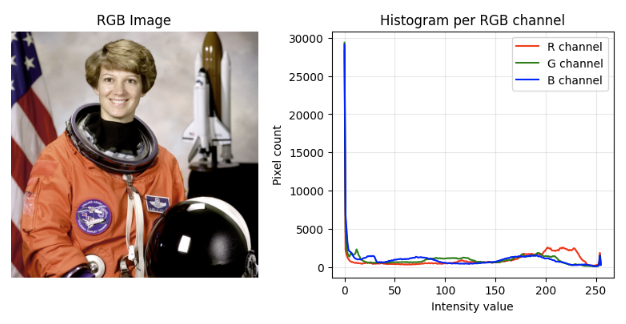
3-2. hue histogram
이 절에선 NumPy에서 제공하는 histogram 함수를 이용한다.
https://dsaint31.me/mkdocs_site/DIP/cv2/ch02/dip_histogram/#histogram-calculation-in-numpy
BME
Histogram 영상에서의 Histogram은 image의 intensity (or pixel이 가지는 값)들의 분포를 보여줌. chart로 표현하기도 하지만 image에 대한 feature에 해당하는 내부적 데이터로 사용하기도함. image에서 histogram으
dsaint31.me
아래는 skimage로 “이미지에서 가장 많이 등장한 hue 상위 N개”를 구하는 간단한 예시.
import numpy as np
from skimage import io, color

# 이미지 읽기
img = io.imread('path/to/image.png')  # shape = (H, W, 3) 등

# (선택) RGB → HSV 변환 (색상 분석을 위해)
img_hsv = color.rgb2hsv(img)

# 예: Hue 채널만 분석
hue = img_hsv[..., 0]  # H 채널, [0.0, 1.0] 범위

# 히스토그램: 256개 빈(bin)
hist, bin_edges = np.histogram(
    hue,
    bins=256,
    range=(0,1),
)

# 가장 많이 등장한 Hue 값 상위 5개
top5_idx = np.argsort(hist)[::-1][:5] # np.argsort(hist): hist의 값을 오름차순으로 정렬했을 때 index순서를 반환.
for idx in top5_idx:
    count = hist[idx]
    hue_value = (bin_edges[idx] + bin_edges[idx+1]) / 2
    print(f"Hue ≈ {hue_value:.3f} 에 해당하는 픽셀 수: {count}")


# Hue ≈ 0.002 에 해당하는 픽셀 수: 40959
# Hue ≈ 0.041 에 해당하는 픽셀 수: 18959
# Hue ≈ 0.037 에 해당하는 픽셀 수: 14086
# Hue ≈ 0.045 에 해당하는 픽셀 수: 13744
# Hue ≈ 0.049 에 해당하는 픽셀 수: 8457
이런 식으로 히스토그램 분석을 통해 hue의 분포를 분석 가능.
같이 보면 좋은 자료들
https://gist.github.com/dsaint31x/1b54e17bde7efdc8975c1481a0db24db
skimage 에서 image 정보, color space 변경 및 histogram 생성.ipynb
skimage 에서 image 정보, color space 변경 및 histogram 생성.ipynb - skimage-image-color-space-histogram.ipynb
gist.github.com
'Python' 카테고리의 다른 글
| scikit-image: High Pass Filter (0) | 2025.10.21 |
|---|---|
| scikit-image: Image Load, Save, Display (0) | 2025.10.20 |
| zip import 튜토리얼-__init__.py 와 __main__.py (0) | 2025.10.17 |
| random 모듈 사용법 (0) | 2025.10.02 |
| Isolation Forest : (0) | 2025.09.17 |


